Dashboard
The Dashboard is your main workspace for viewing, editing, and applying configuration across your units. This guide walks through a common task: updating a value using the Function Browser and applying the change to your cluster.
What You'll Do
- Open the Dashboard for a unit
- Use the Function Browser to update a config value (e.g. namespace)
- Preview the diff and apply the change
Opening the Dashboard
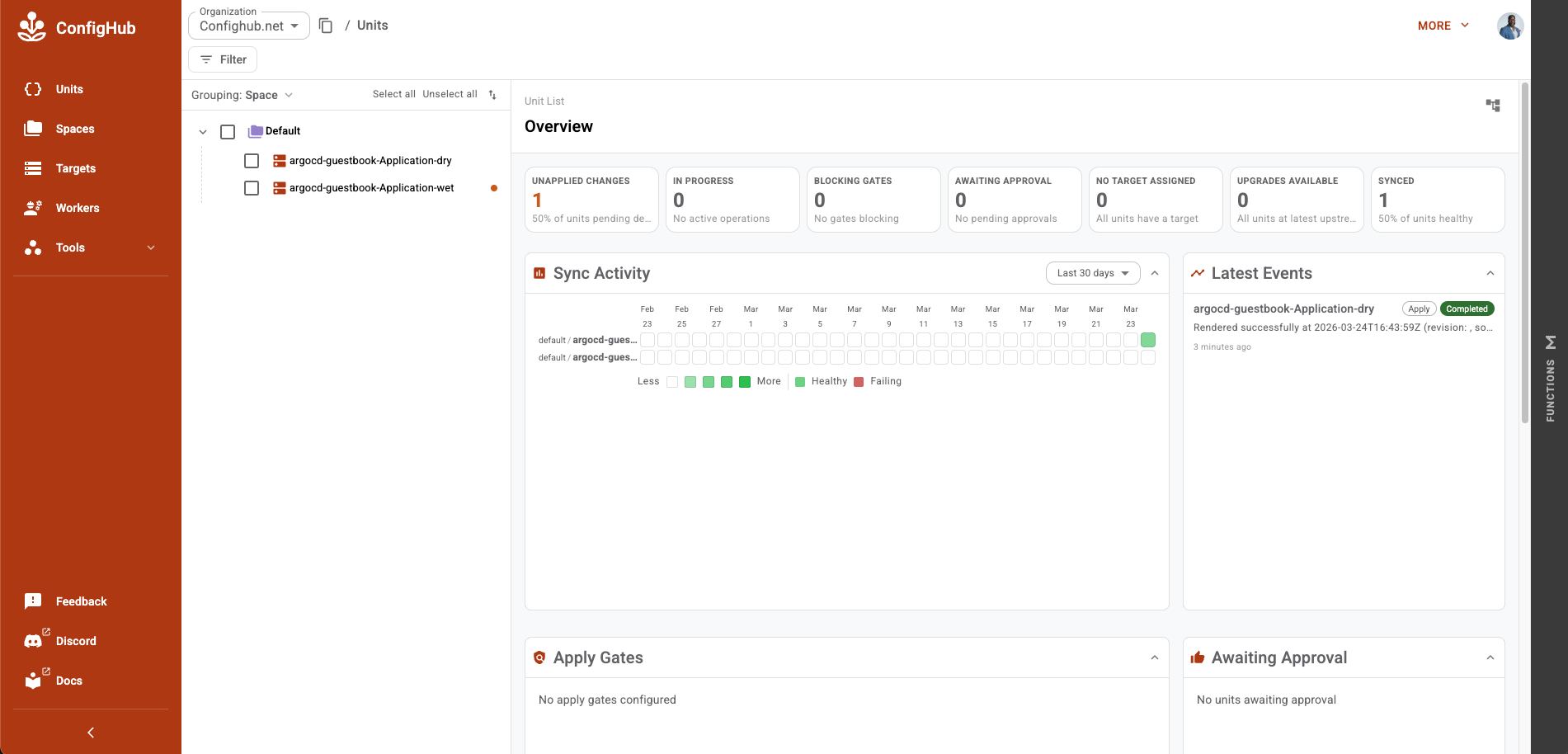
Navigate the dashboard in the tools section of the ConfigHub app navigation. The dashboard opens to the Overview tab, showing current sync status, recent activity and additional information on the status of your units.
Editing Config with the Function Browser
The Function Browser lets you update config values without writing raw YAML. It surfaces the functions available for the selected unit(s) toolchain type(s).
- Select the unit(s) you want to edit in the left unit navigation.
- Open the Function Browser panel on the right side.
-
Select the function you want to modify — for example, set-namespace.
Note
Hover over any function in the list to see its details — including the name, description, and parameters — without opening it.
-
Update the input value (e.g. change
confighubplaceholder→your-namespace). - The editor reflects the change in the rendered output immediately.
Note
You can also edit values directly in the YAML editor if you prefer — both approaches produce the same result. The Function Browser is recommended for structured inputs since it validates values against the function's schema.
Releasing the Change
Saving the edit changes the configuration in ConfigHub; it does not change what is running. The unit now has unreleased changes — its head revision is ahead of the revision that was last published.
To make the change live, publish a Release for the space:
cub release publish <space>
ConfigHub bundles the space's units into an immutable OCI artifact, and the GitOps operator in your cluster pulls and reconciles it on its next sync. See Integrating with GitOps operators.
A unit with an outstanding Validation Error — a failed validating trigger, or a missing approval — blocks the publish until it clears.
Tip: Monitor from the Dashboard Overview
The Dashboard Overview (visible when no single unit is selected) gives you a view across all your units. Click Unreleased Changes to see what has changed since the last Release, and use the Latest Events feed to follow activity. Validation errors are surfaced here too, including units awaiting approvals.
Next Steps
- Components — flow a change through a component's variants, from dev to each production region
- Integrating with GitOps operators — how configuration reaches your cluster