Promotion View
This guide walks through ConfigHub's Promotion view using a realistic multi-app, multi-environment dataset. It demonstrates how to propagate configuration changes across deployment stages — from dev through staging to production — using the two-phase Upgrade then Apply workflow.
Requirements
- cub CLI installed and on PATH
- Authenticated to a ConfigHub server:
cub auth login --server <url>
How It Works
- Upstream relationships connect units across environments. Each unit can have an upstream unit it inherits from, tracked via UpgradeUnit links that are created automatically when you clone
- The promotion tree is derived from these unit-level upstream edges — ConfigHub walks the
UpstreamUnitIDconnections to build a target→target hierarchy (e.g. Dev → Staging → Prod), following the change flow pattern - Two-phase promotion: First Upgrade (merge upstream config into the downstream unit, preserving local overrides) then Apply (push the merged config to the actual target). This follows the Change and Apply Workflow
This can also be achieved via CLI using cub unit update --upgrade (to upgrade one or more units from upstream), cub unit apply (to apply), and cub unit update --upgrade --dry-run -o mutations (to preview changes).
What is an App?
In ConfigHub, an "app" is not a built-in entity — it's a convention established through labels on spaces. An app is a collection of software components that serves a fairly singular and defined purpose. It is typically owned by a single team within an organization and is always deployed as a unit — you don't deploy parts of an app independently.
In the demo data, apps are defined by setting App and AppOwner labels on spaces. The Promotion view groups spaces by these labels to build the app navigation tree. This means you can define your own app boundaries simply by labeling your spaces consistently.
Setting Up the Demo Data
The promotion demo uses the promotion-demo-data dataset from the examples repo. This creates a realistic set of 6 apps across 7 deployment targets with full label metadata.
1. Clone and Run Setup
git clone https://github.com/confighub/examples.git
cd examples/promotion-demo-data
./setup.sh
This creates:
- 6 apps (aichat, website, docs, eshop, portal, platform) each owned by a department
- 7 targets across Dev, QA, Staging, and Prod roles in US and EU regions
- 49 spaces — one per app-target combination (e.g.
us-prod-1-eshop) - ~154 units with Kubernetes deployment manifests customized per environment
All spaces and units carry labels (App, AppOwner, TargetRole, TargetRegion) enabling multi-dimensional filtering.
Using the Promotion View
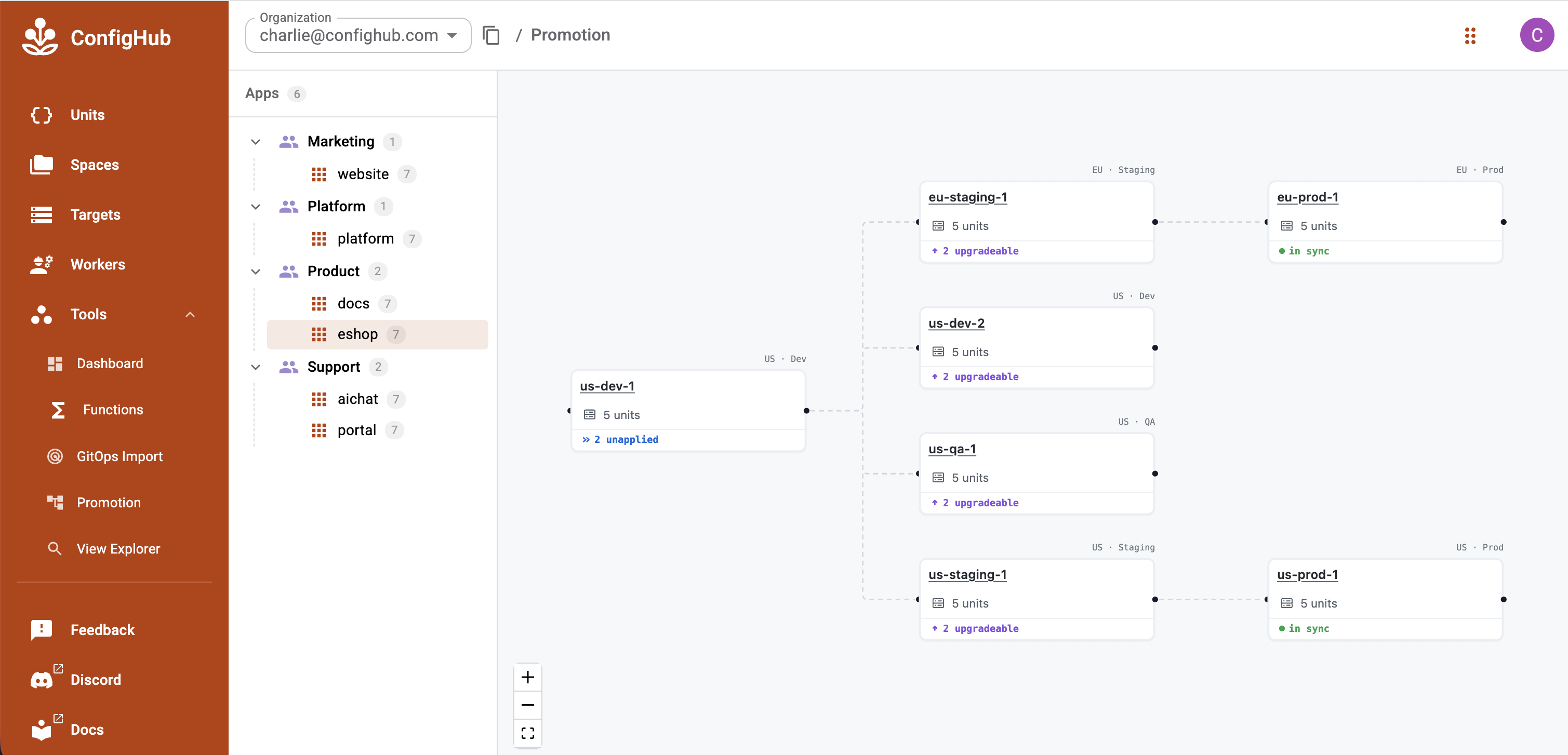
Navigate to the Apps page in the ConfigHub UI. The promotion view uses a three-panel layout:
- Left panel: App navigation tree, grouped by owner (derived from space labels)
- Center panel: Deployment accordion showing the promotion tree for the selected app
- Right panel: Contextual action pane (Unit details, Upgrade, or Apply)
1. Select an App
Choose an app from the left tree — for example, eshop under the Product group. The center panel shows the promotion tree: a nested hierarchy of targets derived from UpgradeUnit links between units.
Each deployment card shows:
- The target name and environment
- Badge counts for upgradeable and unapplied units
2. Upgrade Staging
When upstream units have newer revisions that haven't been merged yet, the deployment card shows an "N upgradeable" badge. Click it to open the Upgrade pane.
Here we click into eu-staging-1. The right panel shows a dry-run preview — merging upstream changes while preserving local overrides. In this case, both the api and worker units have an image tag change from :4.2.1 to :4.2.0, each showing 1 change.
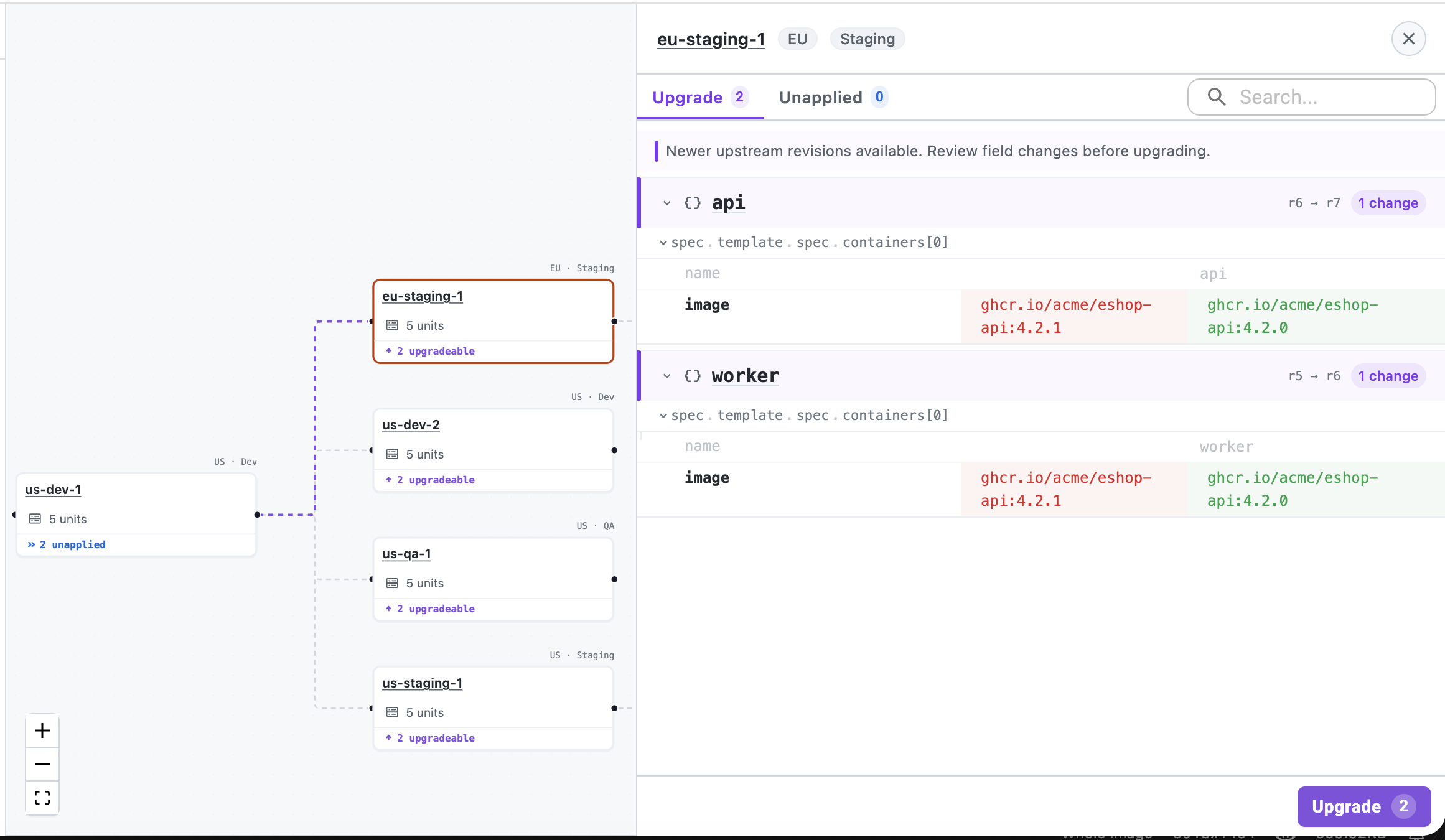
Review the diffs to see exactly what config is coming in from upstream, then click "Upgrade 2" to persist the merge.
3. Upgrade Prod
With staging upgraded, the change is now ready to flow further downstream. Click into eu-prod-1 — the same dry-run preview appears, again showing the image tag updates for api and worker.
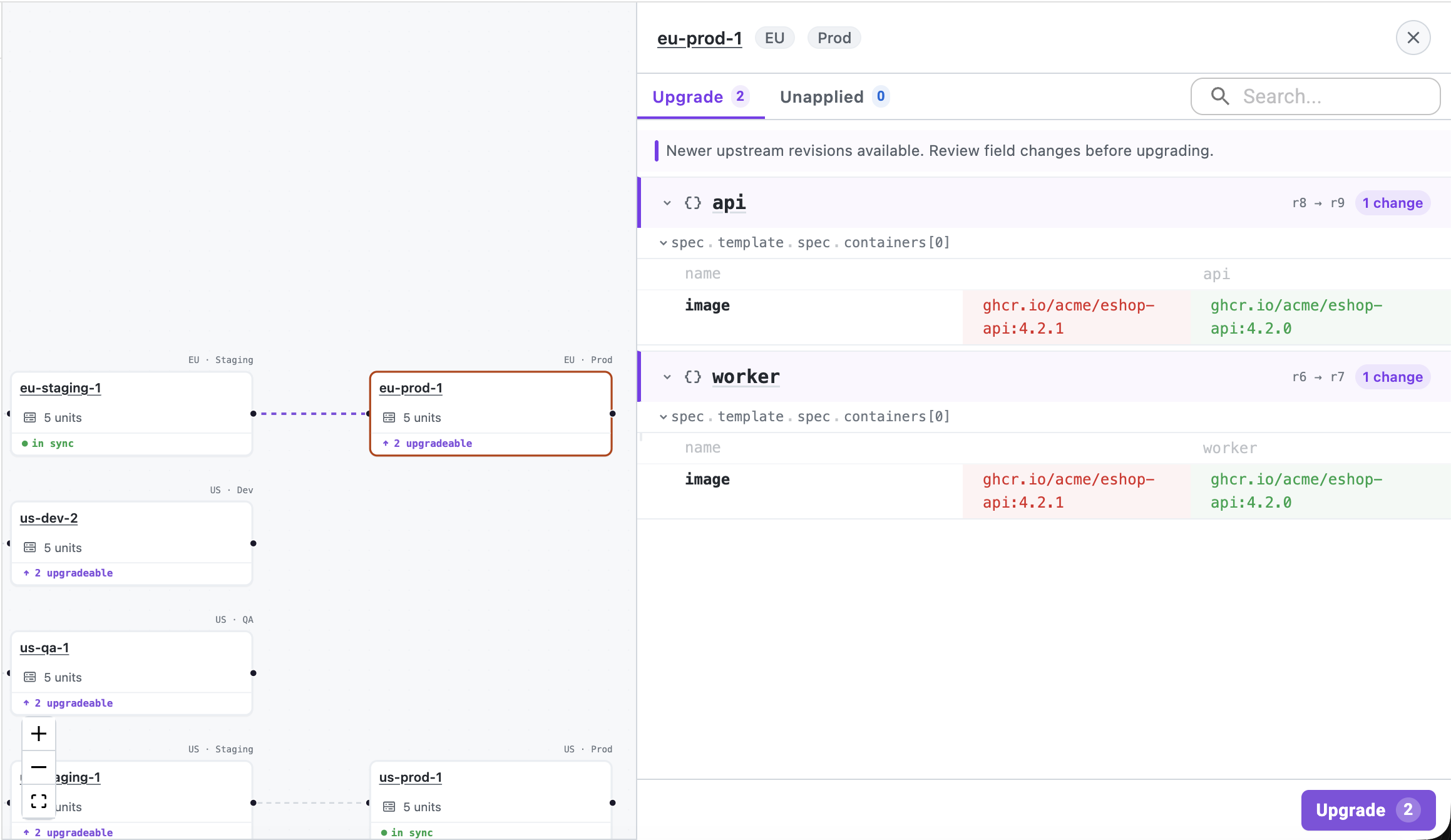
Click "Upgrade 2" to merge the upstream config into prod.
4. Inspect the Promotion Path
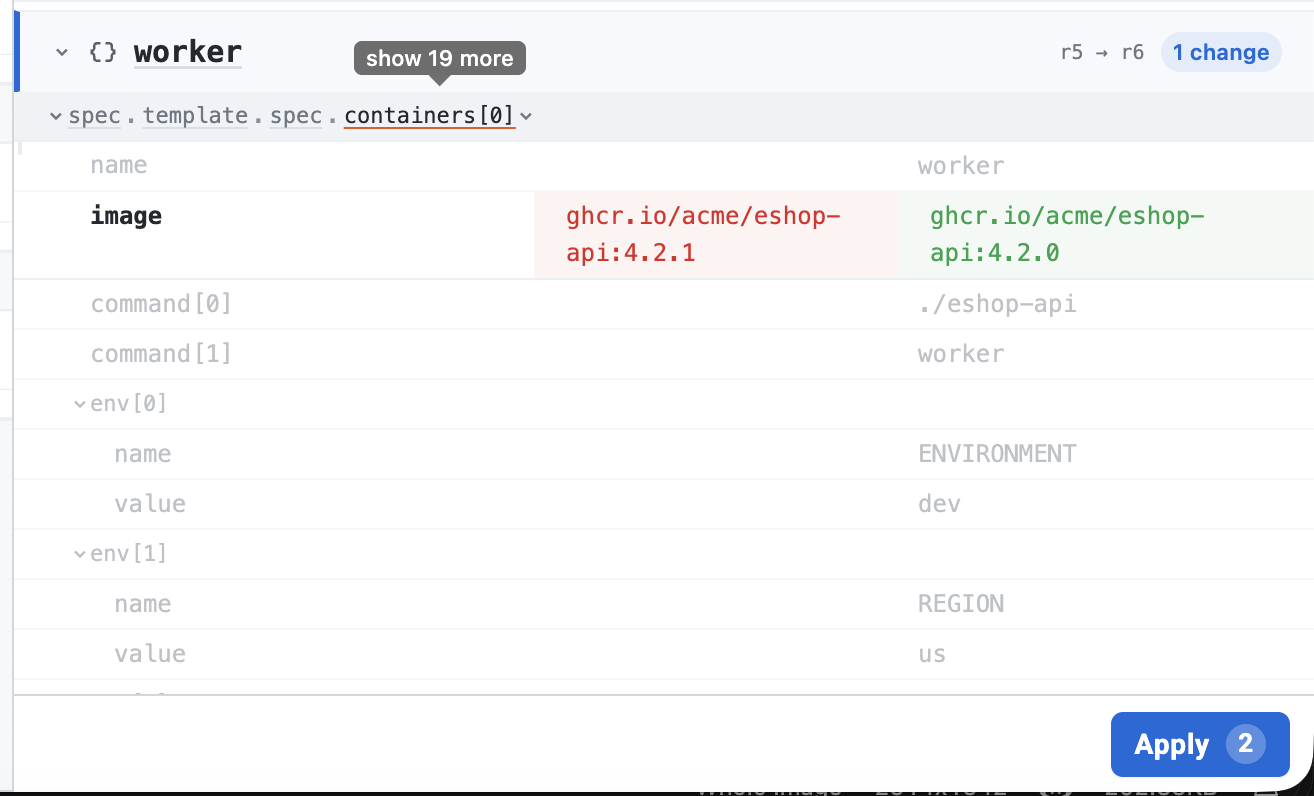
You can click on any segment of the promotion path to view the surrounding values for a unit. This expands the unit's full field list — including environment-specific overrides like ENVIRONMENT, REGION, commands, and env vars — so you can verify context before applying.
5. Apply (Push to Target)
After upgrading, units with unapplied changes show an "N unapplied" badge. Click the Unapplied tab to open the Apply pane. The diffs show the difference between the last-applied data and the current head — confirming what will be pushed to the live target.
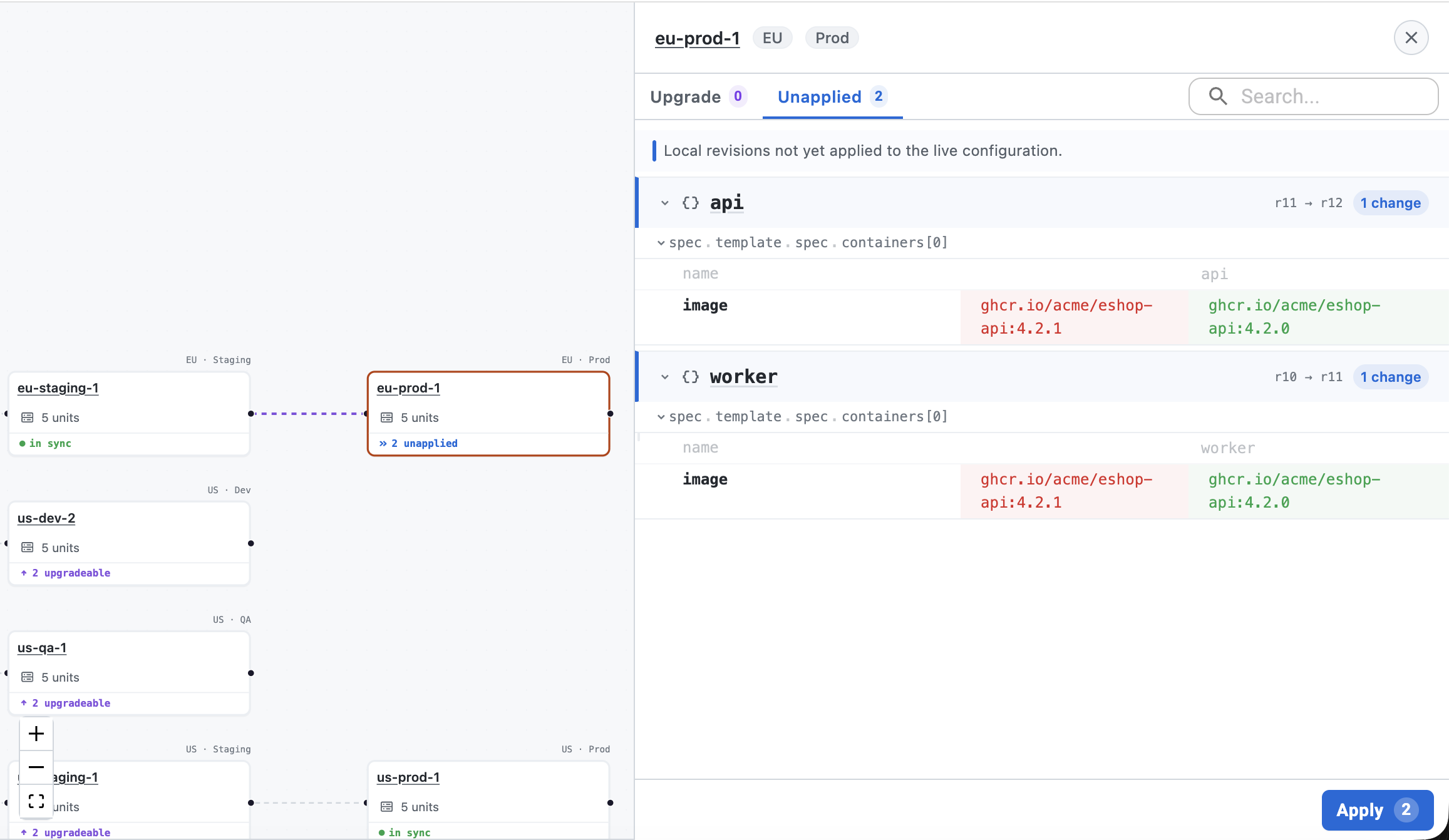
Review the changes, then click "Apply 2" to push the configuration to the target.
Units with Apply Gates are excluded from bulk apply and must be approved first.
6. All Done — Live State is Synced
Once all upgrades and applies are complete, the promotion view confirms that everything is in sync. Both Upgrade and Unapplied badges show 0, and the right panel displays "No fields to upgrade — All units are up to date with their upstream sources."
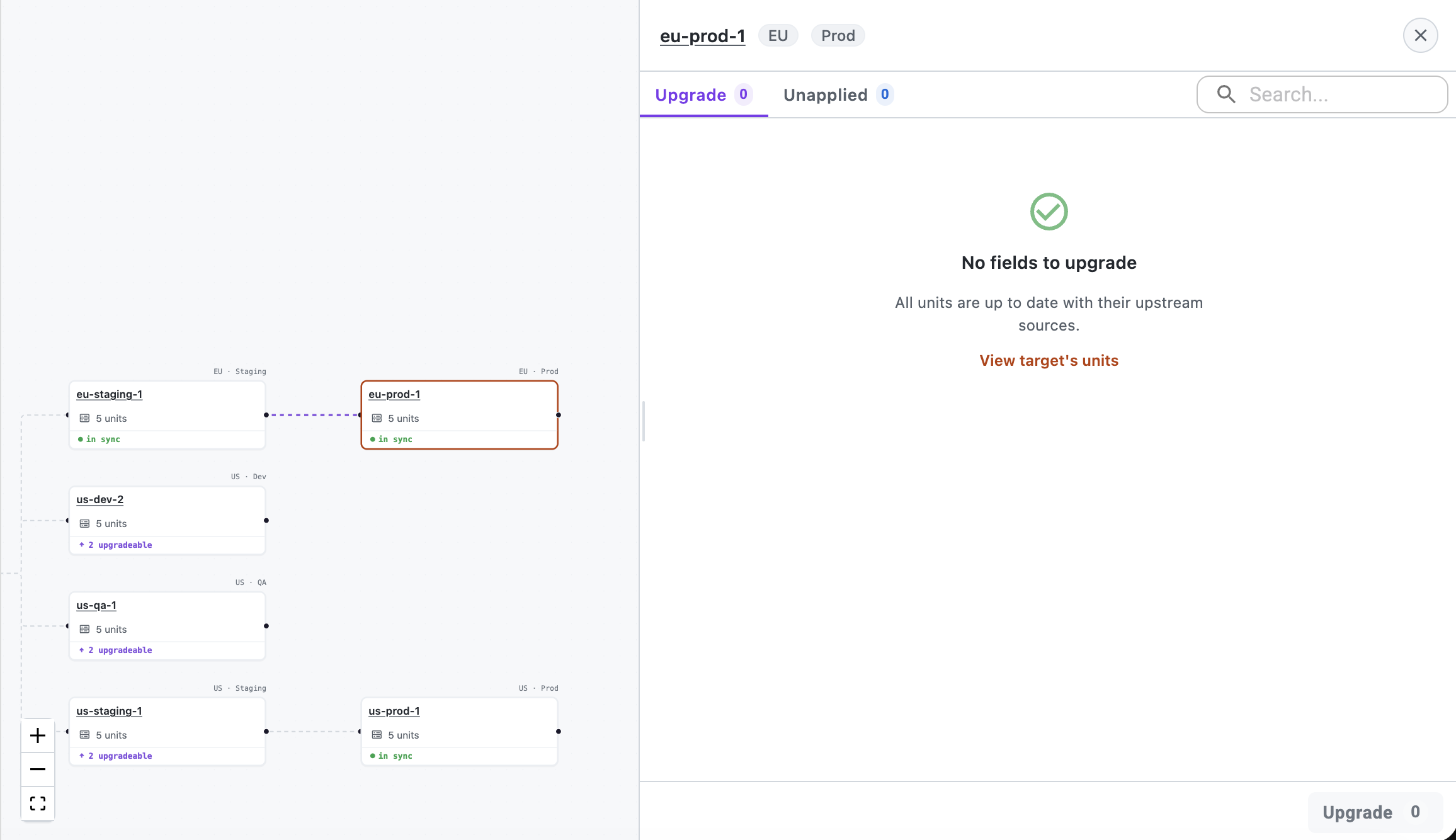
The deployment cards in the promotion tree now show in sync status, meaning the live configuration on the target matches the head revision of every unit. Any future upstream changes will surface new badges, restarting the cycle.
The Two Promotion States
| State | Meaning | Trigger |
|---|---|---|
| Upgradeable | Upstream has newer config that hasn't been merged yet | UpstreamRevisionNum < upstream.HeadRevisionNum |
| Unapplied | Config has changed (via upgrade or local edit) but hasn't been applied to the target | HeadRevisionNum > LastAppliedRevisionNum |
These states can also be queried via filters and views to build dashboards showing promotion status across your fleet. Use bulk operations to act on sets of units at scale.
Cleanup
cd examples/promotion-demo-data
./cleanup.sh
Further Reading
- Change and Apply Workflow — the full change → approve → apply pipeline
- Change Flow — how changes propagate across environments
- Variants — cloning and upgrade mechanics
- UpgradeUnit Links — the link type that drives promotion
- Managing Environments — organizing spaces by deployment stage
- Managing Dependencies — controlling promotion order with links
- Bulk Operations — acting on multiple units at once
- Unit Sets — managing groups of units with filters
- Filters — query syntax for selecting units
- CLI Usage — general CLI patterns